For flight schools and examiners

Exam mode for flight schools and examiners

Lock the aids, run the exam, keep a video of every student's page with every voice on it.

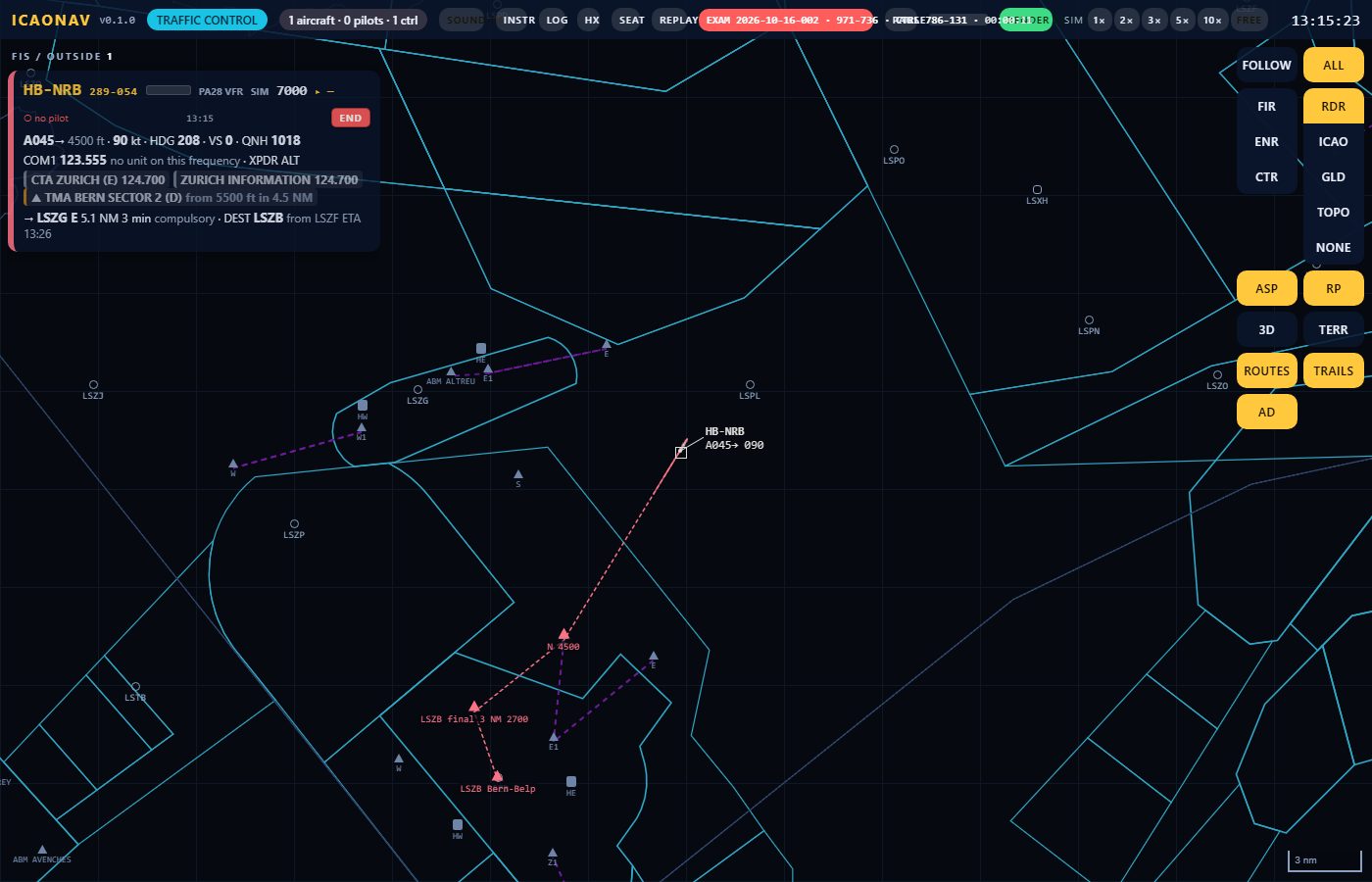
The controller page with a running exam: the top bar shows the exam id, the code, the controller id, the elapsed time, the PAUSE button and the examiner's microphone level; each strip has its own microphone bar
The examiner's top bar: exam id, code, controller id, exam time, microphones.

Exam mode

The examiner takes the controller seat and presses EXAM MODE. Every pilot page loses the glider and topographic maps, 3D, terrain, warnings, assist and route checks: the ICAO chart, the instruments and the plain route stay. The exam gets an id and a six-digit code; one exam runs at a time.

The examiner's page

The controller page with the exam display in the top bar: exam id, code, controller id, exam time, the examiner's own microphone level. Strips show a microphone bar per student (ok, silent, stopped, offline). PAUSE stops every simulated flight and the recording; RESUME continues. The exam starts paused so the students enable their microphones while they wait.

Students and seats

  • Up to about four students on pilot pages, with a simulated flight or a simulator aircraft.
  • A student who reloads or changes device rejoins by flight number and continues as the same participant.
  • While the exam runs nobody takes the controller seat without the controller id from the examiner's top bar.
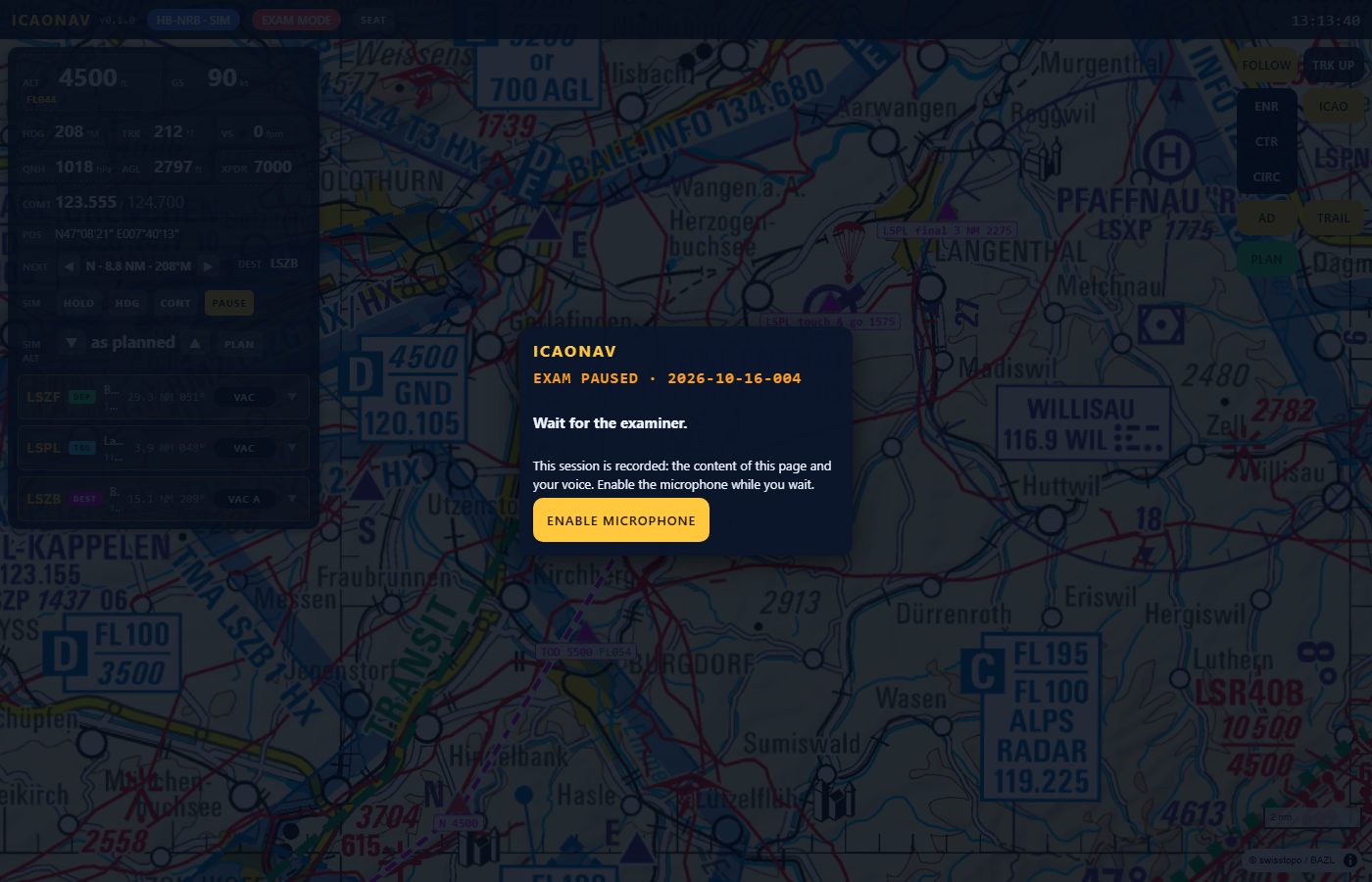
A student's pilot page during a paused exam: the EXAM MODE badge, the bare ICAO chart with assist off, and the panel EXAM PAUSED - wait for the examiner with the microphone button
EXAM PAUSED on the student's page with the microphone ready.

Recording

Every student's page is recorded as data (what it displayed, second by second) and every voice through the device microphone, on the PC, nothing in the cloud. The consent line is on the student's screen before the microphone is enabled. Microphones need the HTTPS address: each device installs the app's local certificate once through the trust page.

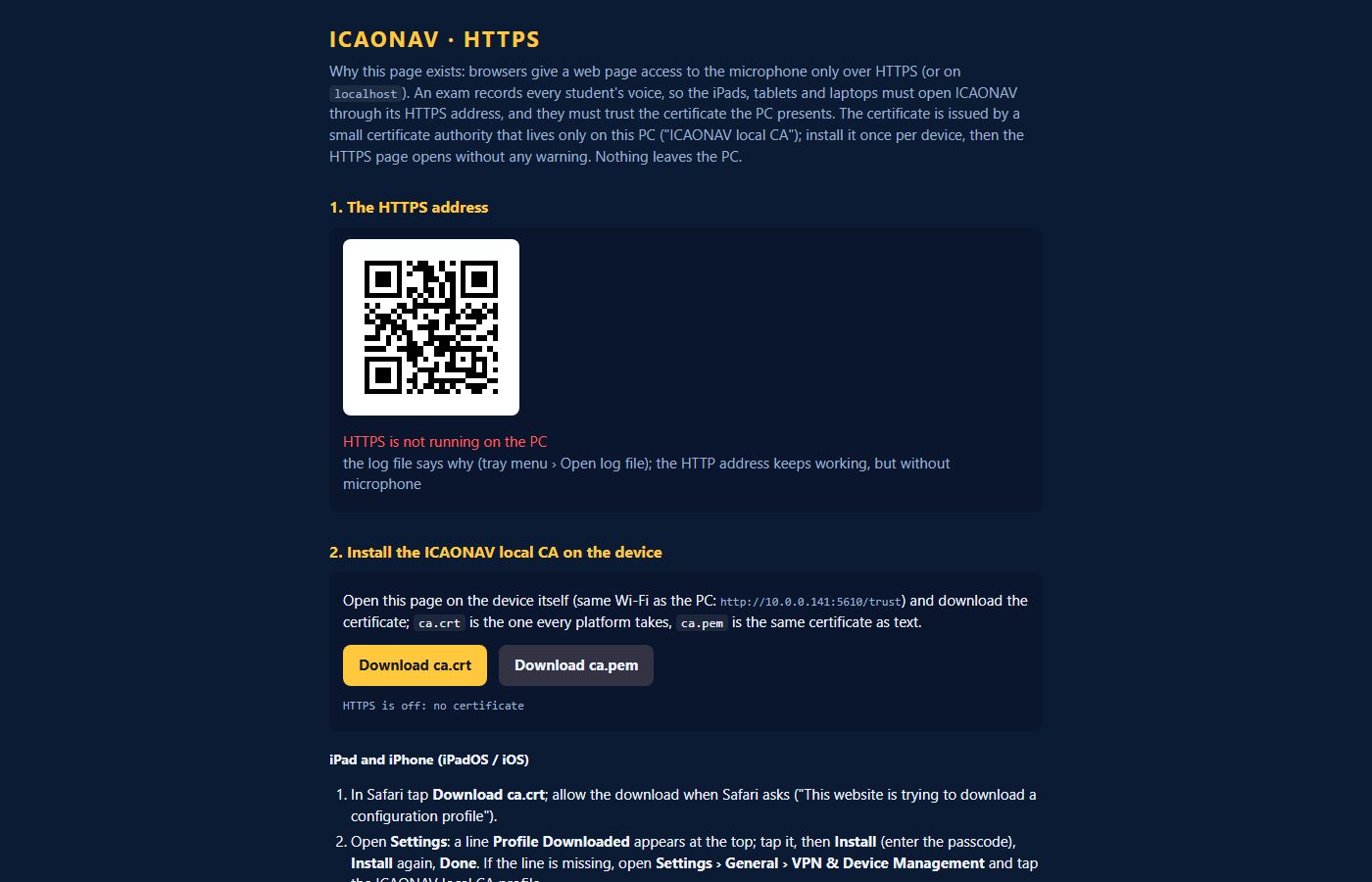
The trust page of the app: why HTTPS is needed, the QR code of the address, the certificate download buttons and the install steps per platform
The trust page: install the local certificate once per device for HTTPS.

Replay and videos

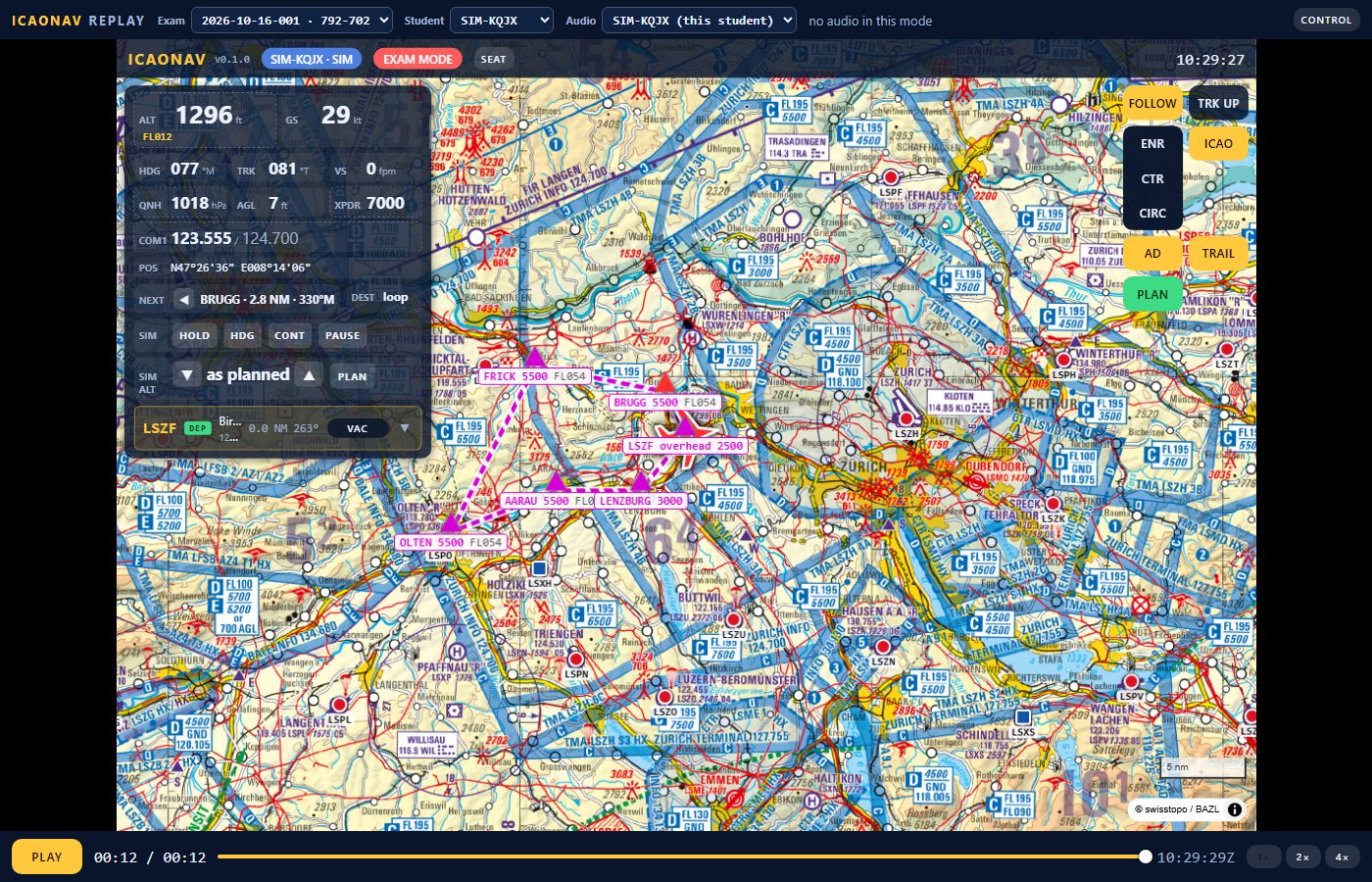
After END the PC mixes the session soundtrack and renders one MP4 per student (720p, H.264): the student's page as it was, with the examiner's and every student's voice. REPLAY shows the same in the browser with a timeline, 1×/2×/4× and the event markers (calls, clearances, airspace entries), from the local tile cache.

The replay viewer playing a recorded exam: the student's page as recorded with the EXAM MODE badge and the bare chart, the timeline bar, PLAY, the time and the speed buttons
Replay of a student's page with the timeline and the session audio.
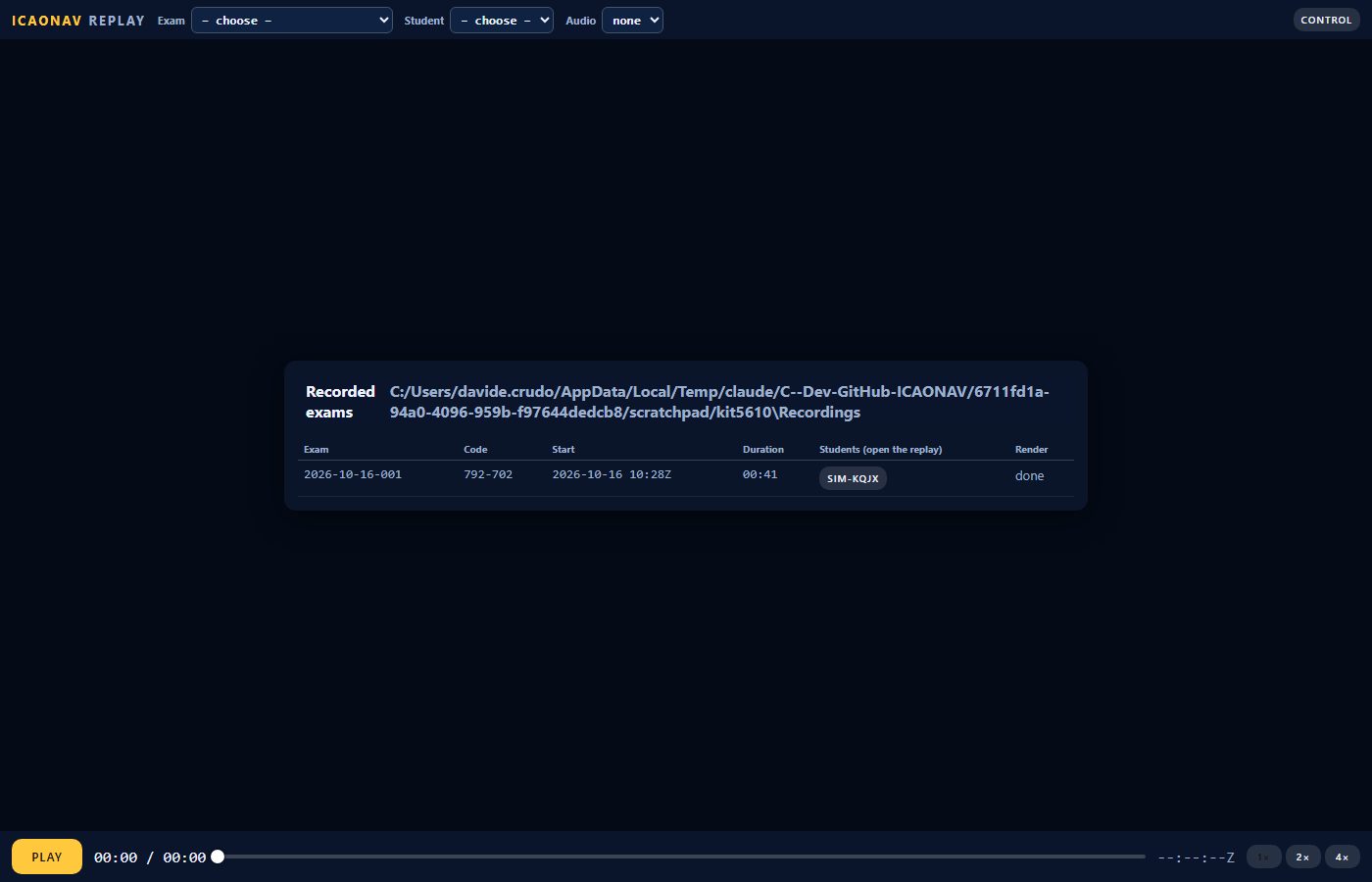
The replay viewer's exam list: recordings folder, exam id, code, start time, duration, the students and the render state
The exam list: one line per recorded exam with its students and the render state.

What is in the exam kit

The exam version is delivered by us as an exam kit for your ICAONAV installation, with the recording tools, the examiner's instructions and the device checklist for the students' iPads and laptops. Every exam session is stored on your own PC: the session manifest, the common soundtrack with all voices, one video per student with what that student's page displayed, and the raw audio and data for the replay. Nothing leaves the PC.

Get the exam kit

The exam kit is not a public download. Write to us: we set it up with you and walk through the device checklist (auto-lock off, Safari in the foreground, microphone permission remembered).

Contact us at info@swissbix.ch

The standalone and simulator versions are a public download: Standalone · Flight Simulators.