X-Plane 12 - MSFS 2024 - MSFS 2020

The Swiss ICAO chart beside your simulator

ICAONAV reads the aircraft from X-Plane 12 or Microsoft Flight Simulator and puts it on the official chart, on the iPad.

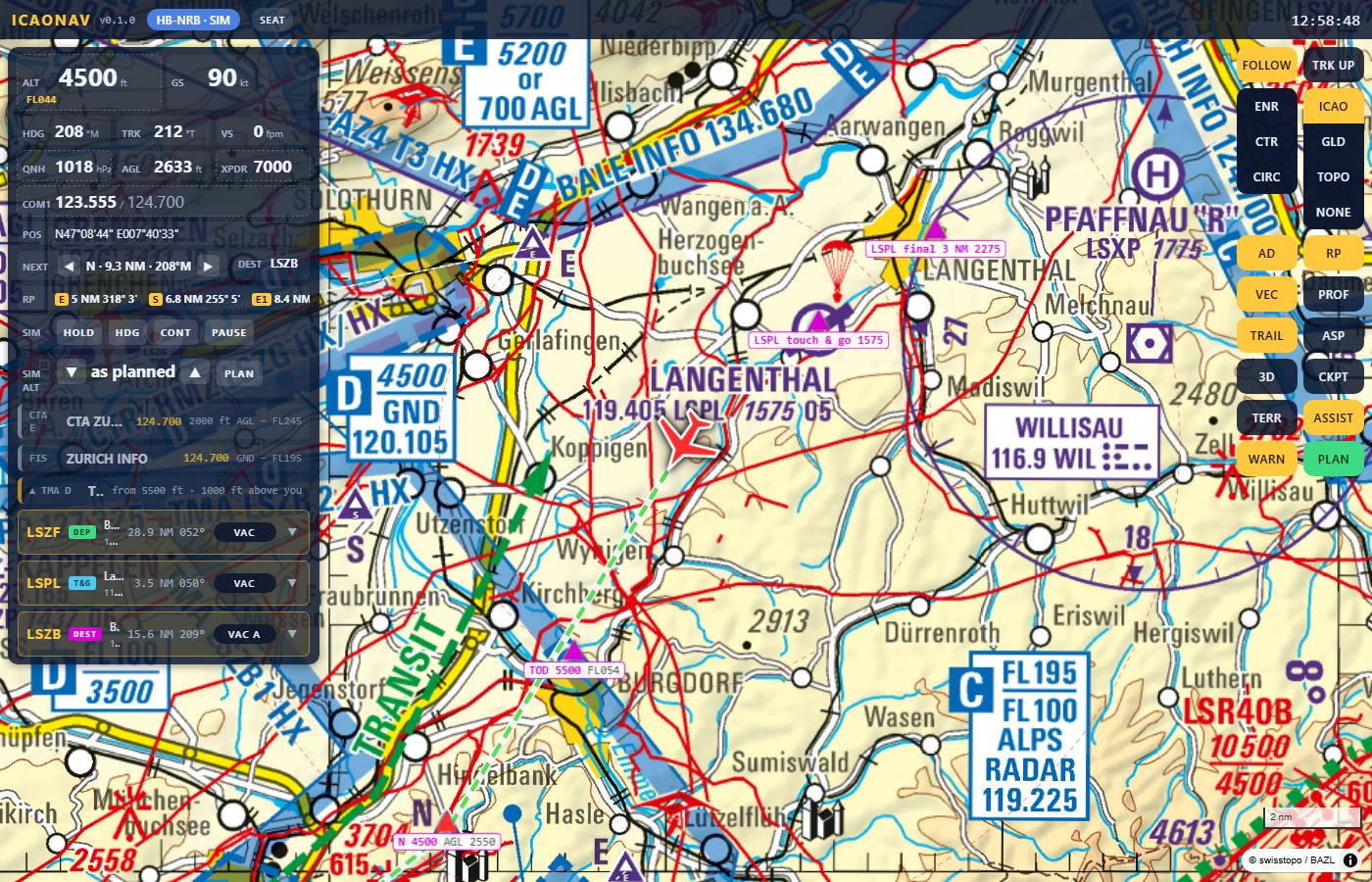
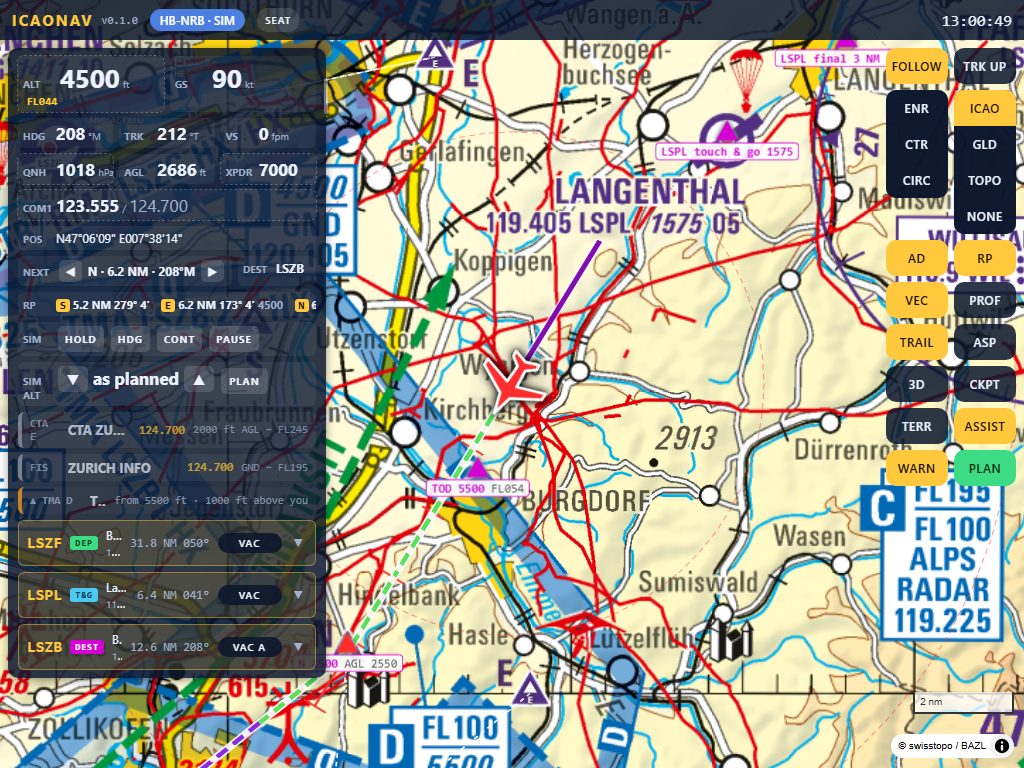
The pilot page with the aircraft on the swisstopo ICAO chart, the instrument panel showing QNH 1018, XPDR 7000 and COM1 123.555, the reporting points and the airspace rows
The simulator aircraft on the chart, squawk and COM1 as in the cockpit.

X-Plane 12

On the same PC, X-Plane 12.1.1 or newer is read through its built-in Web API (port 8086): nothing to install or configure in X-Plane. Older X-Plane, or X-Plane on another PC of the LAN, falls back to the classic UDP dataref link (port 49000), also without a plugin.
Microsoft Flight Simulator 2024 and 2020

ICAONAV has its own SimConnect client that talks to the simulator over its named pipe or TCP. No SDK, no Developer mode, no SimConnect.dll needed; a simulator on another PC is reached by address. If you prefer the official SimConnect.dll, drop it next to the executable and switch the link in the settings.

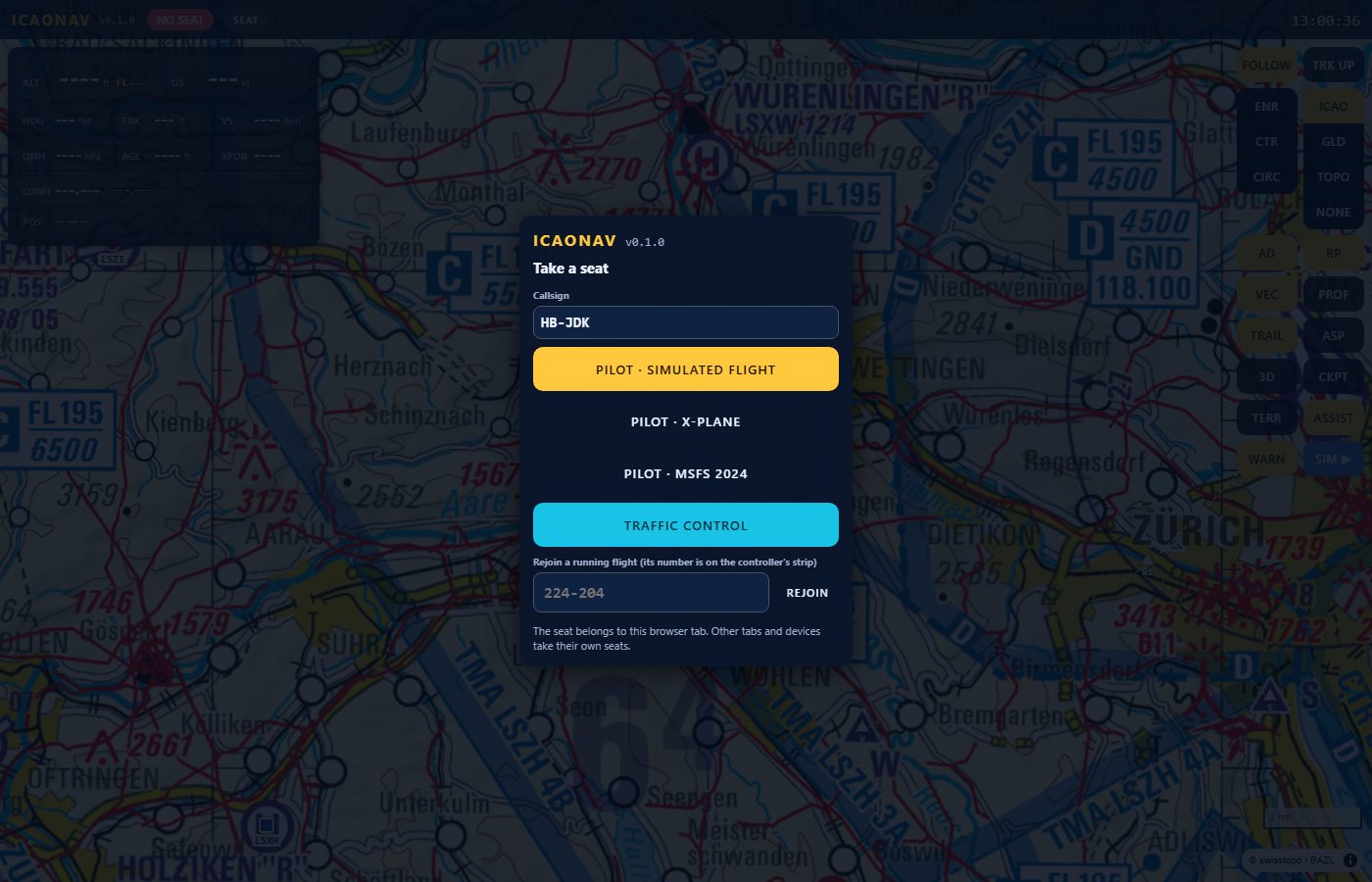
The Take a seat dialog with the buttons Pilot - simulated flight, Pilot - X-Plane, Pilot - MSFS 2024 and Traffic control, plus the rejoin by flight number field
Pilot · X-Plane and Pilot · MSFS 2024 in the seat dialog.

What is read, what is written

Read from the simulator

Position, true and indicated altitude, height above ground, headings and track, ground speed and IAS, vertical speed, QNH (barometer setting), COM1 active and standby, squawk, Zulu time, on-ground.

Written back from the page

The squawk and the COM1 frequencies you type on the iPad keypads set the transponder and the radio in the simulator (MSFS via SimConnect events, X-Plane via the Web API; the UDP link is read-only).

The iPad as the moving map

Follow and track-up, zoom presets (ENR, CTR, CIRC), the flown track, the airspace you are in and the one ahead with its frequency, reporting points with ETA, the VAC and AD INFO of the nearest aerodrome, 3D, cockpit and terrain views. Add the page to the Home Screen for a full-screen cockpit display.

The pilot page at iPad landscape size: the ICAO chart with the aircraft, the instrument panel and the map controls FOLLOW, TRK UP, ENR, CTR, CIRC
The pilot page at iPad size: add it to the Home Screen for a full-screen display.

A flight plan for the real aircraft

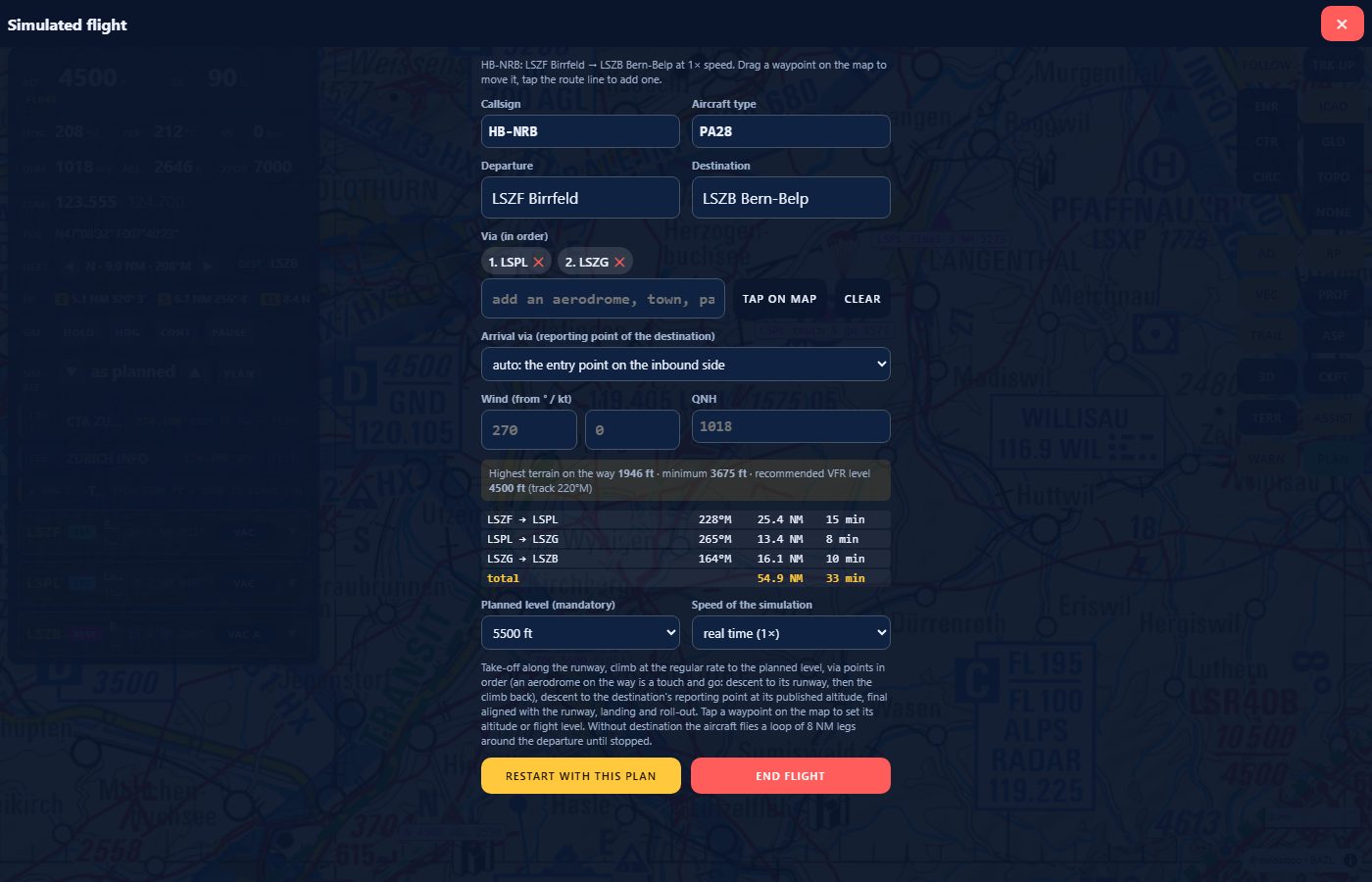
PLAN opens the same sheet as the simulated flight: departure, destination, via points, arrival point, cruise level with the terrain check. The planned route is drawn in magenta, the track you actually fly in orange, so the two can be compared and the controller sees where you are going.

The PLAN sheet: departure, destination, via points, wind, QNH, the leg table with bearing, distance and time and the planned level
PLAN for the simulator aircraft: magenta planned route, orange flown track.

A friend as your controller

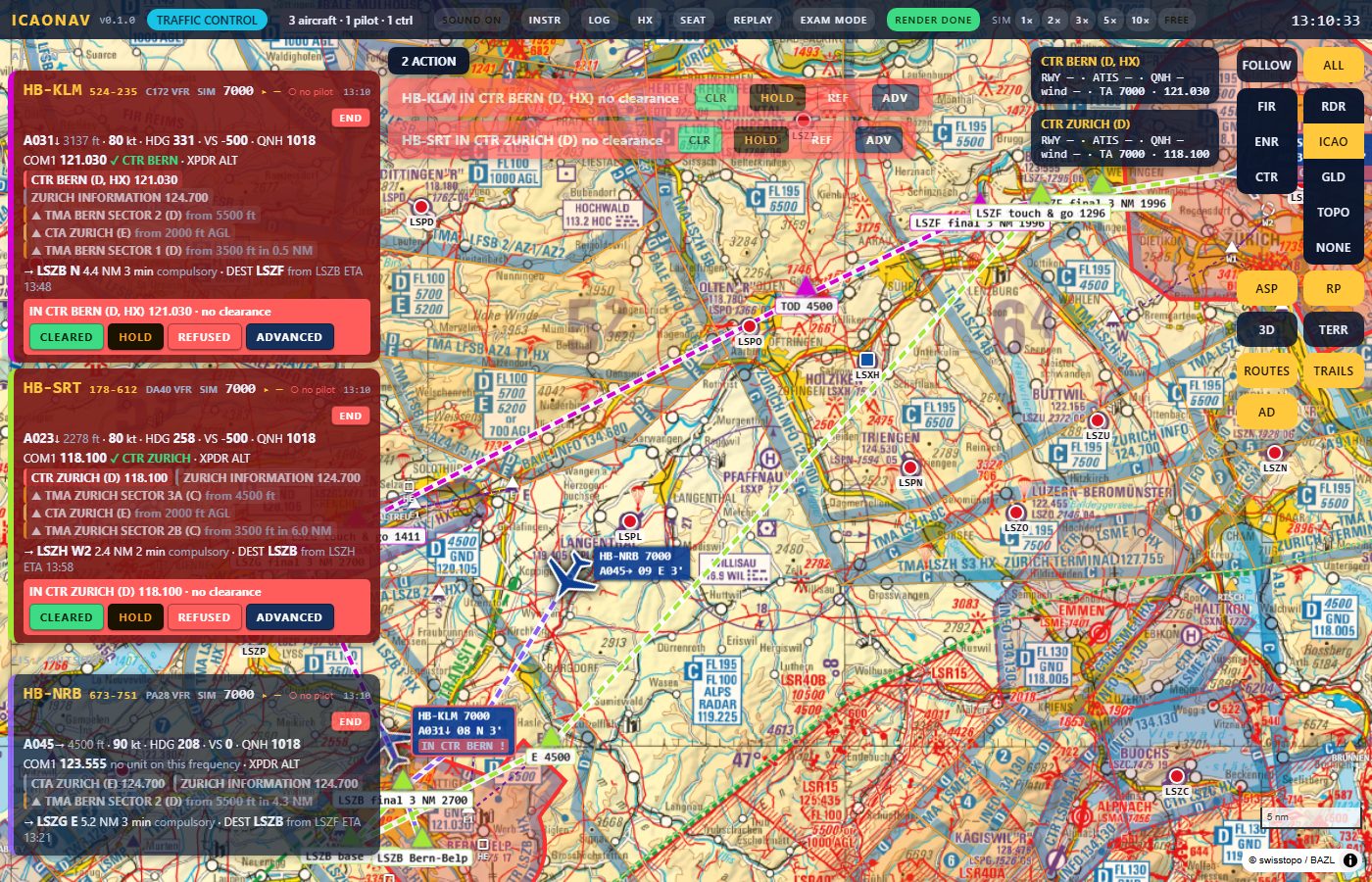
Anyone on the LAN opens the controller page: strips, radar view, warnings before you enter a CTR or TMA, clearances pushed to your page for the readback. The simulated aircraft of other pilots fly in the same airspace as traffic.

The controller page on the ICAO chart: three flight strips with warnings on the left, the alert bar, aircraft symbols and routes on the chart
The controller page on the ICAO chart with the simulator aircraft and simulated traffic.

Download ICAONAV 0.6.0 - early access

The file

ICAONAV-0.6.0-win-x64.zip

Download for Windows

Inside: ICAONAV.exe (one self-contained file, no .NET to install), the data folder (aerodrome list, frequencies, reporting points, phraseology, airspace classes) and wwwroot (the pages).

Requirements

Windows 10/11 64-bit; internet on the PC for the map tiles and airspaces (cached afterwards); X-Plane 12.1.1+ or MSFS 2024/2020 for the simulator seats. The eVFR Manual (aerodrome charts) is not included: download it in the app with your own Skybriefing account.

First start

  1. Unzip the folder anywhere, e.g. C:\ICAONAV.
  2. Run ICAONAV.exe. Windows SmartScreen warns because the preview build is not yet signed: "More info" → "Run anyway". Allow ICAONAV through the firewall for private networks when asked.
  3. The tray icon shows the address and a QR code. Open it on the iPad (same Wi-Fi) and take a seat.

Version 0.6.0 is early access; features and files change between builds. The release build will be signed by Swissbix SA. Not for real navigation.